





Access to a sensitive document is often granted for a specific purpose. A lawyer needs a contract during a review. An auditor needs financial records for a defined assessment period. A healthcare consultant may need access while completing a case review.The security problem begins
when that purpose ends but the document remains available.
To expire document access means setting a clear condition that automatically ends a recipient’s ability to open protected content. Instead of relying on someone to remember to remove access later, the document follows a predefined availability rule.
This turns document access from an open-ended permission into a controlled business window.
Most organisations carefully decide who should receive a sensitive document. Far fewer decide when that person should stop being able to read it.
This creates file-level access accumulation. Documents remain available because nobody has been assigned to close access. A recipient may continue opening a confidential file months after the project, contract, audit, or review has ended.
The recipient may still be trusted. The problem is that access no longer serves an active business purpose.
Automatic document expiry addresses this issue by connecting access duration to the reason the file was shared. A document remains readable while the recipient needs it. Once the approved period ends, access closes without depending on a manual follow-up.
For IT security and privacy teams, this creates a more disciplined access model. Permission has a start point, an approved duration, and an end point.
Document expiry is an access-control action. When an expiry condition is reached, the protected content can no longer be viewed by the affected recipient or group.
Expiry should not be confused with deleting an ordinary file from another person’s device. A recipient may still see the file name or attachment. The protection prevents the content from continuing to open through the controlled document process.
The expiry condition can be based on time, date, view count, or an administrative action. The right method depends on how the document will be used.
A good expiry policy answers three questions:
These decisions should be made before the file is distributed whenever possible.
A fixed expiry date works well when the business process has a known deadline.
For example, an external auditor may receive a financial report that should remain available until the audit closes on a stated date. A legal adviser may receive deal documents that should expire after the review period. A candidate may receive a confidential employment document that remains open until the offer deadline.The sender selects the date and time when access should end. Once that point is reached, the recipient can no longer view the protected document.
This method is useful when all approved readers share the same access window.
A timer sets access for a defined period, such as several hours or days.
The timer can be useful when the access period should begin in relation to a specific event. For example, a sensitive pricing file may be available for 48 hours after distribution. A temporary consultant may receive access to a project brief for seven days.
Timer-based document expiry avoids the need to calculate and enter a separate calendar date for each file. It also creates a consistent access duration across repeated workflows.
The organisation should define when the timer begins. Depending on the system and configuration, it could start when the document is created, delivered, launched, or first opened.
Some documents are intended for limited review rather than continuous access.
A recipient may need to open a payment instruction once to complete a verification. An executive may need to review a confidential briefing a limited number of times. A supplier may need temporary access to a specification during a submission process.
View-based expiry limits how many times the protected document can be opened. Once the permitted number of reads has been reached, access ends.
This method can be useful for short, defined interactions. It requires careful configuration because recipients may need to reopen a document due to interrupted sessions, browser closures, or internal approval steps.
The view limit should therefore reflect the actual workflow rather than the lowest technically possible number.
Some access periods cannot be predicted in advance.
A legal review may end earlier than planned. A project may be suspended. A file may be replaced with a corrected version. A recipient’s role may change during the review period.
Manual expiry gives the document owner the ability to end access when the underlying business condition changes.
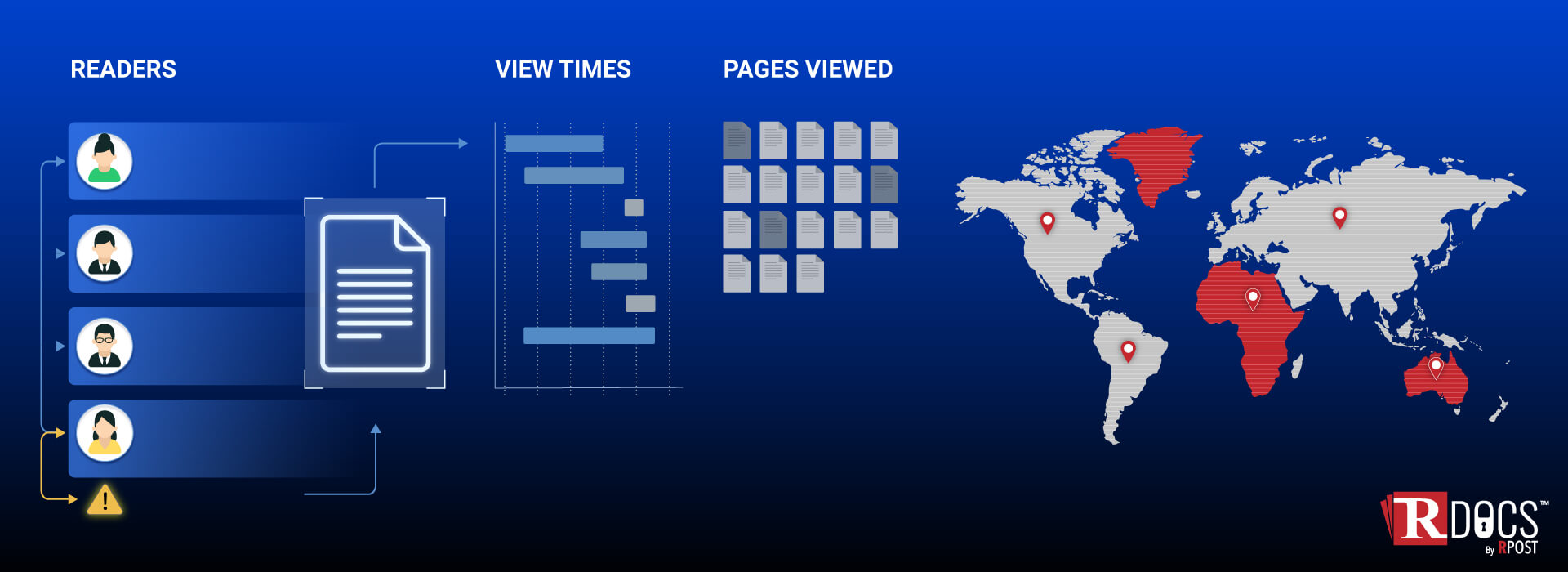
RDocs document owners can expire access at the click of a button and can apply the change to one reader, selected readers, or all readers. It also supports temporary expiry and later reactivation.
RDocs converts a document into an RPD™, or Rights Protected Document™, file. The document originator can apply access settings before sharing it and manage those settings after distribution.
For document expiry, RDocs supports several control methods:
These options allow an organisation to match document availability to the actual workflow instead of applying one access period to all files.
RDocs lets organizations set clear limits on how long a document remains accessible. Access can expire on a specific date, after a set period, after a certain number of views, or through a manual action. A practical way to start is to identify documents that are only needed for a limited time, then apply an expiry rule that matches that review period.

October 13, 2026

September 01, 2026
August 13, 2026
July 10, 2026
July 03, 2026



 Blog
Blog